
Setting Up / Using Your Vendor Account
Thanks for your interest in becoming a vendor with Home & Heritage Antique Market, we’re happy to have you! This page will go into how to apply for your vendor account and how to use it. As you scroll down you’ll see a step by step process of registering and at the end a FAQ section to address any questions that you might have after reading this tutorial.
Getting Registered & Applying for a Booth
To get started and apply for a booth please navigate to the page “Become a Vendor“. You can click the button on the homepage or navigate there from the menu on the “Vendors” dropdown.


Approved Vendors
After being approved the rest of the site can be made available and items can be listed after the monthly booth rent is paid. Booth fees are recurring and set up one time per booth. See “Booth Fees Setup” on the “My Account” dropdown to pay. After the booth membership is paid for the “Vendor Portal” is made available to the user to monitor sales, input items etc.


Vendor Portal
The “Vendor Portal” is your main dashboard for checking on your sales in real time as well as adding new items to the market database to be rang up at the cash register. See the screenshot below and notice that there are several different sections that you can use with your booth.

Dashboard – The main tab that has an overview of stats surrounding the booth’s sales.
Orders – Shows a list of orders with booth items on it.
Products – Lists products. Allows products to be added, modified and deleted.
Reports – Shows booth stats in graph form.
Comissions – Lists commissions and shows their status for the booth.
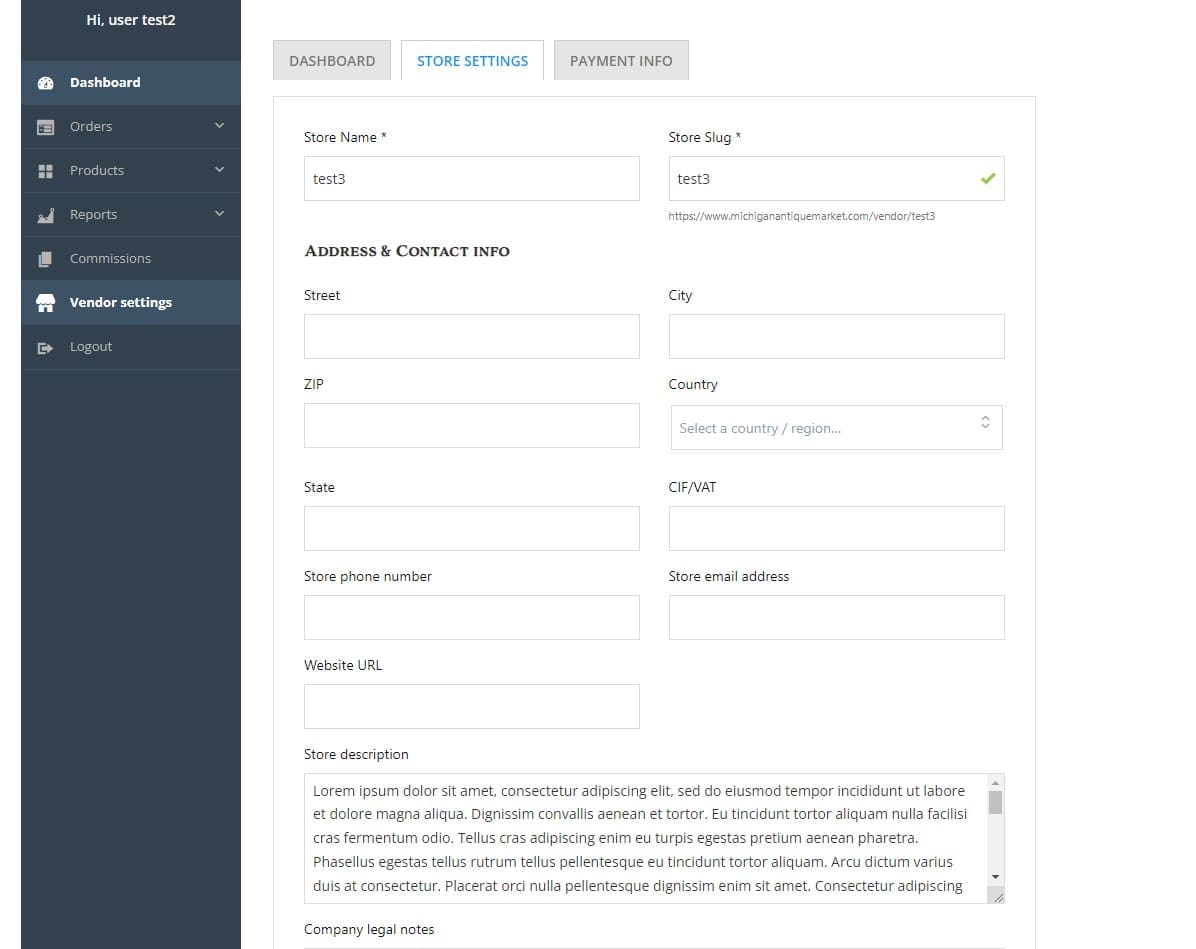
Vendor Settings – Allows vendors to change payment settings, store information and see stats.

Orders
See a list of your orders and how many items have sold.



Products
See a list of your products and modify them from this page.
For the vendors that already have products listed in the market place, each product can be moused-over to edit, or delete from the marketplace.
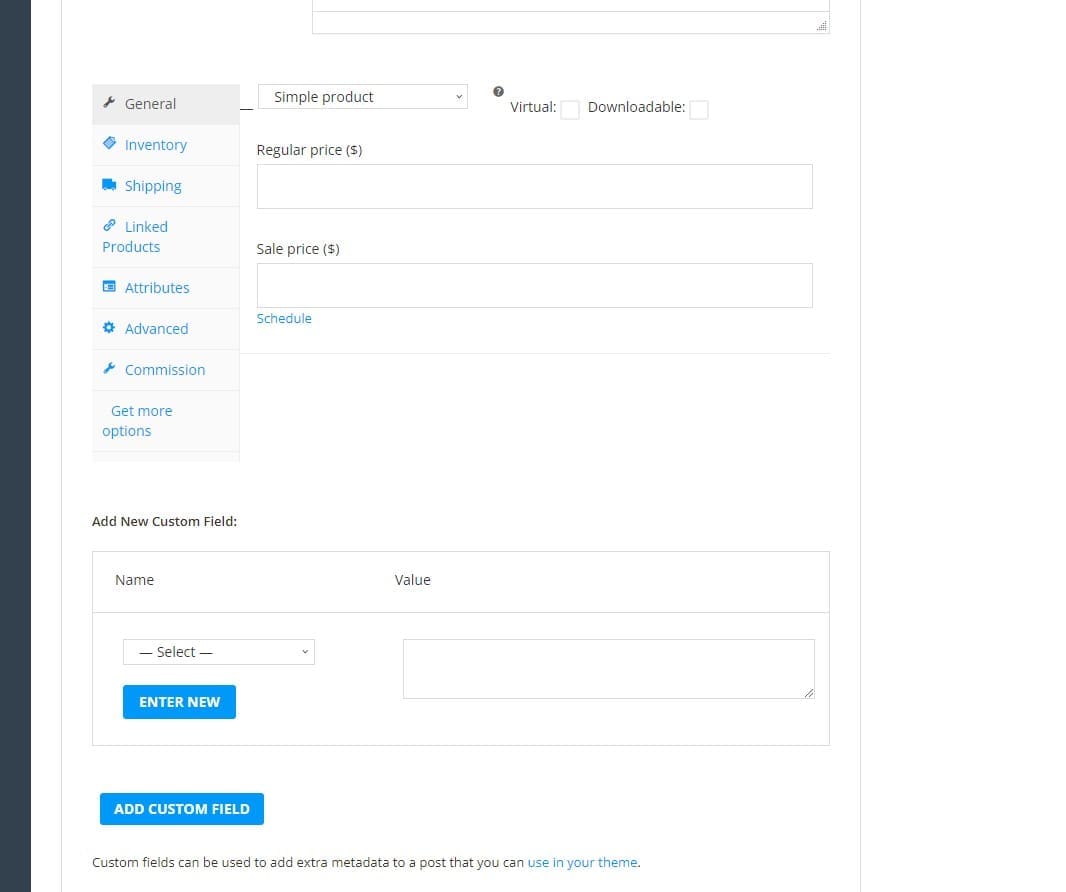
New products are added by pushing the “Add Product” button. The main fields to input are the Title, Description, Price, Images.
When a new product is added it will be reviewed by the market manager and added to the market database for sales.
Adding Products in Bulk
To add products in a faster fashion products can be added to a preformatted spreadsheet that can be imported into the system. To download that spreadsheet, PLEASE CLICK HERE.

Please fill out this spreadsheet with all of the information that pertains to your items. Everything will be imported to the correct fields of the store as they are typed in. Please make sure that after updating the spreadsheet it is saved in a .CSV format. No other file format will be accepted.
After the spreadsheet is filled out and saved, please navigate to the market back-end. This looks like the front-end manager where you can see all of your booths information and add products however the back-end also allows for bulk product editing.


The following steps correspond with the images above. (Step 1 – image one etc.)
- Once in the market back-end mouseover Products and select “All Products”. This will take you to the second image above which has the “Import”.
- Click Import
- Click “Choose File” and select your previously prepared CSV file to continue with. Once it has been selected please press continue. Please note that any existing products will be skipped by SKU. (You can edit products in bulk using the same spreadsheet that you’re using now. To make those updates, the checkbox on this screen would need to be selected so that the existing products are updated rather than skipped.)
- The mapping fields screen is a screen for more advanced users and can be ignored if you’re using the supplied spreadsheet. If it looks like the screenshot above please click “Run Importer”.
- When the products have been imported successfully, a screen will show like image 5 and have the button “View Products”. Click “View Products” to go to your product screen where all products will be waiting for market manager approval (image2).

Reports
See real time sales data as customers checkout from the market.

Commissions
See a real-time list of the commissions your booth is earning and the status of each of the commissions. As each pay period ends commissions will change status and be paid out to each of the vendors accordingly.

Vendor Settings
See more reports for your booth as well as change the store settings and what customers will see on your Booth Page.
Adding Staff Members to Your Store
Adding staff members to your store is an easy process that starts from your account page and after they are added to the store depending on the permissions that are given to the staff member they can help manage the store in various ways.


- Starting at the main vendor My Account Page. Navigate to your Vendor Portal using either link Vendor Portal or Frontend Manager“.
- Click Vendor Settings
- Click Staff
- Click Add New Staff
- Fill in the information including the email they have registered with to the site (user must be already registered with the site, not as a vendor). If the staff member hasn’t registered, click here to register.
Printing Labels
To print labels for your products there are two ways to accomplish this. Both use the same process and can use multiple different types of printers.
To get started printing labels the products that need labels need to be selected.
- Go to the back-end of your store and selected the products that you need.
- Select the product(s) that you need to print labels for. You can select multiple to print in the same quantities, or one at a time.
- To print one at a time, select the label icon on the right side of the product row.
- To print multiple products at once in the same quantity, check the boxes to the left of the product names. After the products are selected click the Product Label button on top of the product table.
- Change the Type of barcode to “Code 39”. Select the quantity of labels you want to place on the sheet and push create. The “X” can be selected if you want to choose other labels to be added to the sheet before printing. Simply push the “X”, make your new selections, and then open the product label screen again.
- Push Print on the bottom left when your page(s) are ready to print.
- Select your printer, and push print.


Using the Discord Community
Our vendor community and support platform that is embedded on the Community page is one that actually works independent of the website to help keep the site working smoothly for all the vendors and store staff alike. To be able to chat with the other vendors or file a support ticket, users must register with Discord and be able to sign into the platform.
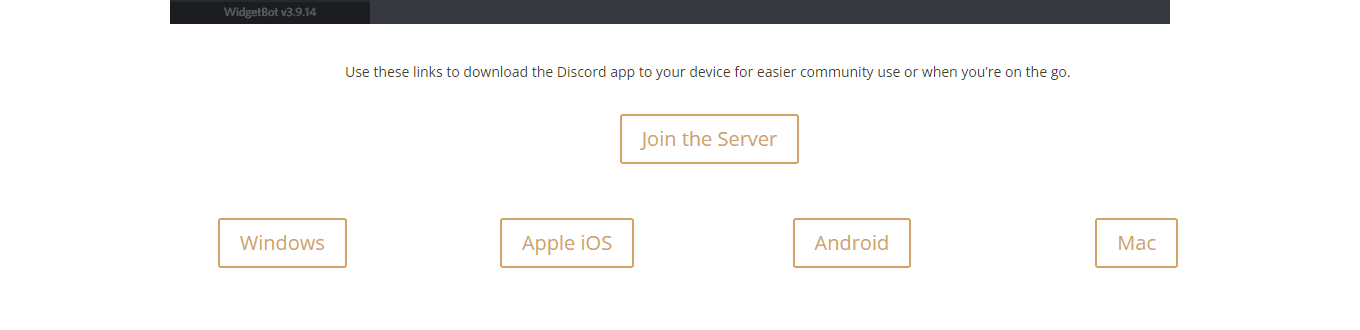
Once you’ve registered for the platform you can use it on multiple devices including your mobile device, PC / Mac or on the Community Page. The links on the bottom of the page under the chat window will direct users to the download of device specific software.
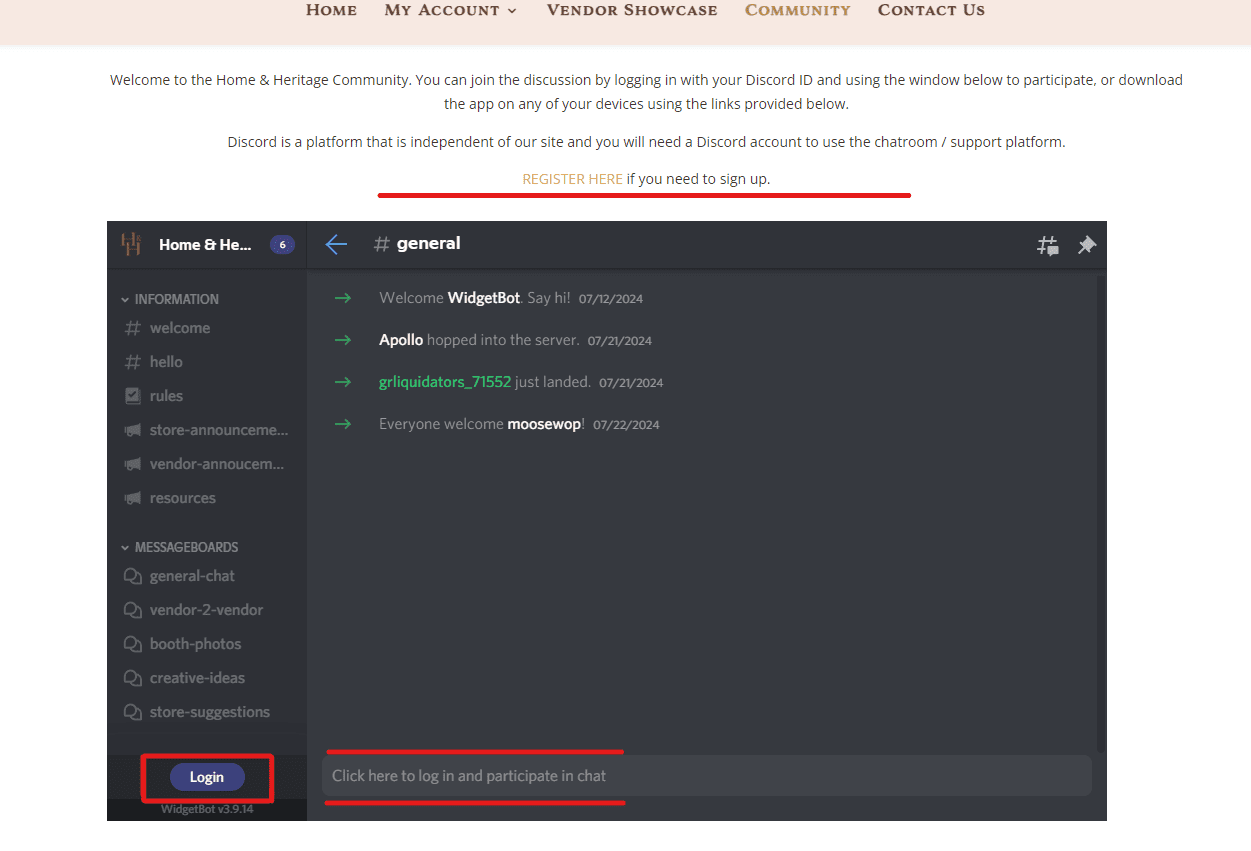
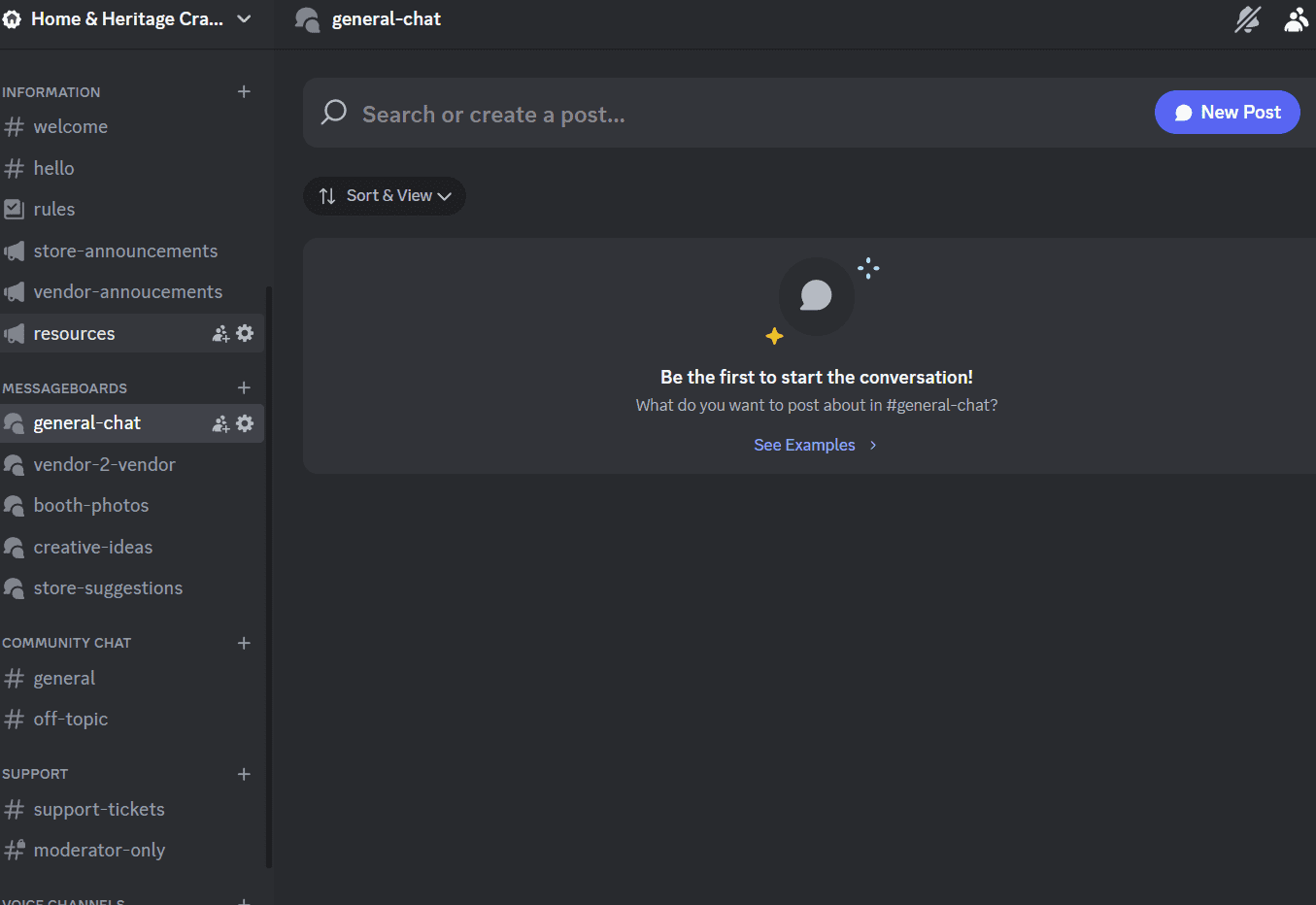
Inside the H&H Discord Server / Chatroom there are several ways to communicate and can be chosen on the left side of the screen.
There are chatrooms for more instantaneous messages, message boards for longer discussions and also support tickets when a concern needs to be addressed regarding the shop etc.
- Community Chat –
- General – Good as an instant messaging channel for store based topics
- Off Topic – Instant messaging channel that is for any sort of clean, friendly chat.
- Message Boards – Longer Discussions in a threaded display
- General Chat – general store topics
- Vendor 2 Vendor – Vendor messages to other Vendors
- Booth Photos – Photo channel to share photos with the rest of the community
- Creative Ideas – Share your ideas with the store itself or other vendors.
- Store Suggestions – Leave your feedback with ideas on how to improve the experience.
- Support
- Support Tickets – Open a support ticket to have your questions and concerns addressed by the store staff / tech support.
Marking Items on Sale
Sale Prices can be added to items on the Front-end Dashboard by editing each of the products one by one.


To work on items in bulk or change the items by a % the changes will need to be made on the back-end of the market. Quick editing is a great way to get the work done a little faster but keep in mind when doing bulk edits, whatever changes are made will apply to ALL of the selected items until a new set have been selected.
To mark items on sale from the back end it works the same as the front-end, starting with clicking on Edit underneath the item that needs to be changed. In order to do bulk editing by % each of the items that are being changed need to already have a Sale Price assigned to them before changing them by %.
- If editing items in bulk, after setting the sale price (checkbox), select the items in that the change should be applied to.
- After all of the items are selected, go to the top of the product table and select “Edit” from the Bulk Actions drop down.
- Press Apply Button.
- The Products table will change to show all of the quick edit options.
- Select the method of change from the Sale Price drop down.
- Enter the interval of change in the field that appears.
- Scroll to the bottom of the Quick Edit menu and push Update.
- Verify the changes worked as intended.


Location
4972 Plainfield Ave NE, Grand Rapids, MI 49525
Hours
Monday - Saturday : 10 am - 6 pm
(Wednesday open until 8pm)
Sunday: 12 pm - 6 pm